Daily Life
Home Internet Outages in China: A Troubleshooting Guide for Foreign Residents
A practical guide to diagnosing a home broadband outage in China, reporting it clearly, arranging technician access, and protecting remote work.
Rules and procedures can change. Check the linked official sources before acting on time-sensitive information.
Quick answer
What you need to know
Separate Wi-Fi problems from a provider outage, preserve account details, report useful evidence, and build a safe backup connection before remote work is disrupted.
- Test the modem or optical network terminal, router, cable, and a second device before resetting anything.
- Keep the broadband account name, installation address, provider number, and property contact together.
- Ask who will visit, the appointment window, fees, and whether the account holder must attend.
- Use a personal hotspot only within your plan and employer security rules.
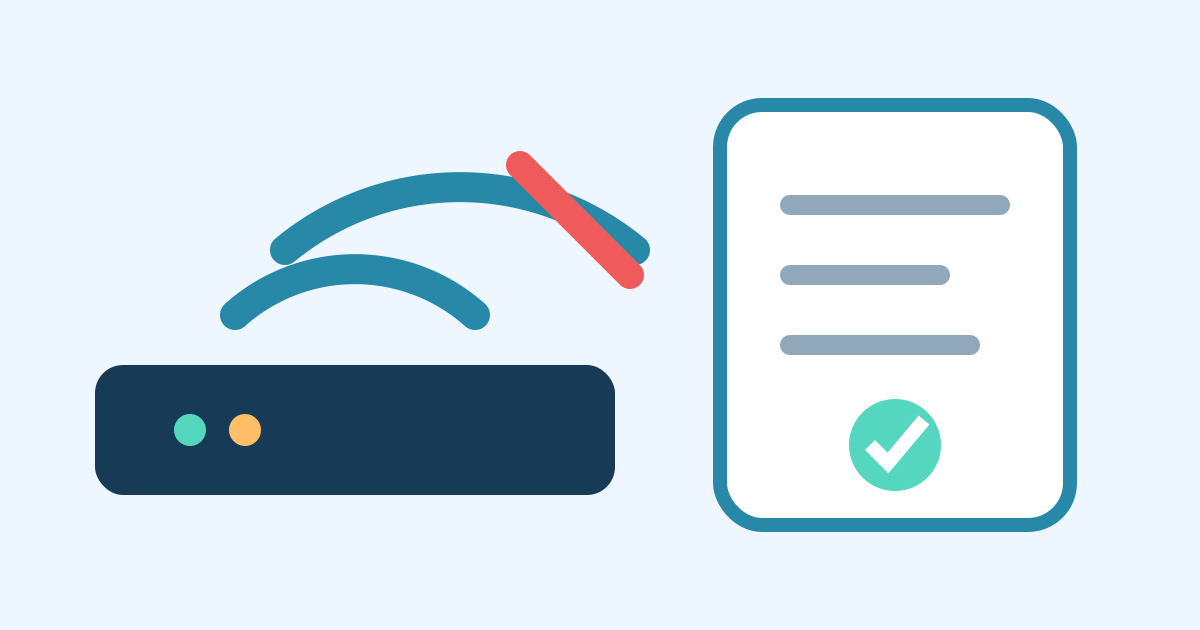
A broadband outage is easier to resolve when you can say whether the problem is the Wi-Fi signal, your router, the fiber terminal, the building network, or the provider. Do a short, reversible check before changing settings.
Diagnose without erasing settings
Check whether multiple devices fail and whether a device connected by Ethernet also fails. Photograph the lights on the router and optical network terminal, note when the outage began, and check cables without unplugging the fiber lead. Restart equipment only in the documented order. Do not factory-reset a landlord’s router or provider equipment without approval.
If only one room is affected, the issue may be Wi-Fi coverage rather than broadband. Review the broader home Wi-Fi setup guide before buying repeaters.
Open a useful repair ticket
Find the account holder, provider, registered phone number, installation address in Chinese, and customer number. Ask the landlord, agent, property desk, or provider whether the building has a wider outage. When booking a technician, confirm the ticket number, visit window, identity or access requirements, possible charge, and whether the named subscriber must be present.
Never share a payment verification code or remote-control access merely because a caller claims to be support. Use a number shown on the provider’s official app, bill, or website.
Protect remote work
Tell your manager early and use an approved office, coworking space, or mobile hotspot if permitted. Check tethering limits and keep confidential work off public Wi-Fi unless your employer supplies an approved secure connection. See work device and account security for a safer fallback plan.
Internet outage checklist
- Test a second device and, if available, a wired connection.
- Photograph equipment labels and status lights.
- Record the start time and any building notice.
- Save the account holder, address, provider, and customer number.
- Obtain the repair ticket and technician window.
- Confirm access, fees, and account-holder attendance.
- Notify work and use only an approved backup connection.
- Test service before closing the ticket.
Official reference points
Provider procedures and complaint routes change. Confirm the current process with the named subscriber, provider, building management, or the competent local communications authority.
Frequently asked questions
Common questions
Should I factory-reset the router?
Usually not as a first step. A reset can erase provider or landlord settings. Photograph the labels and lights, restart safely, and ask the account holder or provider before a factory reset.
Who reports broadband in a rented apartment?
It depends on whose name is on the account. Ask the landlord or agent whether they must open the repair ticket, and keep the ticket number and appointment details.
Can I use mobile data for company work?
Confirm your data allowance and your employer's security policy. Avoid sensitive work on an unapproved network or shared hotspot.